
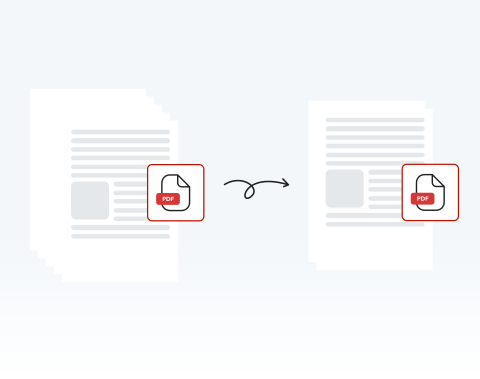
Delete Pages From a PDF

Need to delete pages from your PDF? You can do so in seconds with our secure online tool.

Choose your File

or drag and drop

SSL Encryption - Supports PDF up to 100 MB and other formats and extensions up to 25 MB

Excellent 4.6 out of 5

Using our PDF page remover tool, you can quickly:

  • Delete blank or duplicate pages to tidy up your document.
  • Remove outdated sections from reports or presentations.
  • Cut unnecessary pages before sharing files with others.
  • Keep only the most relevant content for a clearer, more focused PDF.

Keep reading to learn how to delete pages from a PDF and make your documents ready to use.

How to Delete Pages From a PDF

You can remove any pages you want from your PDF document in just 4 easy steps:

1

Upload your file

Use the "Upload" button or drag and drop the PDF you want to delete pages from

2

Select the page(s) to delete

Hit the "Rearrange Pages" button on the toolbar at the left side of the dashboard, and choose the page(s) to delete

3

Delete PDF pages

Click on the "Delete" button to remove the selected pages

4

Save or share

Once the pages are deleted, download the new PDF or share it

Why Choose MergedPDF to Remove PDF Pages?

Delete unwanted pages 100% online

If there are pages that you don’t want, you can get rid of them in just a few clicks. Best of all, with our website, you can delete PDF pages online — no installation required!

Remove specific pages

You don’t have to worry about deleting the whole document or large chunks of it — you can select any and all pages that you need to remove on our platform and delete them with ease.

Remove PDF pages on any device

Computer, smartphone, or tablet, we’ve got you covered! You can remove pages from your PDF on our website whether you use PC or Mac; iPhone or Android. We support all browsers and OSs too!

Remove pages safely

Deleting pages from a PDF couldn’t be safer than on our site. All files and data are encrypted to keep them secure and private, and they are removed from our servers after use.

Delete PDF pages effortlessly

Want things to be as simple as possible? You’ve come to the right place! We pride ourselves on how easy our site is to use. It’s designed for your convenience. Try it out and see!

The best way to remove pages from a PDF

Our platform is regarded as one of the best around. Why? It’s quick, user-friendly, and secure. You also have access to a range of other tools to edit your PDF. What more could you need?

MergedPDF Offers Multiple PDF Solutions

Start by creating a free account and make it easy to edit, convert, compress, and split your files!

  • Edit, convert, merge, and more with our platform
  • Get unlimited edits and downloads
  • Convert in multiple formats
  • 100% private and secure uploads and editing
  • 24/7 customer support

Frequently Asked Questions About Deleting PDF Pages

Everything you need to know about removing pages from PDFs.

Can you delete pages from a PDF?
Yes, you can delete pages from a PDF with our online tool in just a few seconds.

Simply upload your file, select the pages you want to remove, and delete them instantly. It’s a fast and easy way to clean up your document.
How can I remove blank pages from PDFs?
You can use our “Delete Page” function to remove any unwanted blank pages from your document.

Simply import your file to our converter and editor, select the blank pages to delete, and remove them with the delete button.

It's that easy!
How do I delete specific pages in a PDF?
To delete specific pages in a PDF, first click “Rearrange Pages” in the toolbar on the left.

From there, select the pages you want to remove and click the delete button.

This lets you quickly remove only the pages you do not need.
What happens if I delete a page by mistake?
If you delete a page by mistake, you can undo the change while you are still editing the document. In fact, you can easily undo any changes you make.

This makes it easy to correct errors and continue editing without starting over.
Can I rearrange the remaining pages after deleting some?
Yes, you can rearrange the remaining pages after deleting some of them.

Our tool allows you to reorganize your PDF however you need. This makes it easy to keep your document clear, structured, and in the right order.
Will deleting pages reduce the file size?
Yes, deleting pages will usually reduce the file size of your PDF.

This is especially true if the removed pages contain large images or graphics. It is also one of the most effective ways to make a PDF smaller without affecting document quality.
Are there any limitations on the number of pages I can delete?
No, you can delete as many pages as you like. Using the “Select Page” button on the toolbar, you can select any number of pages from your PDF document.

Once you have selected all the pages you want to remove, click on the “Delete” button. This will get rid of everything you have selected, regardless of how many pages.
Is my data safe when I delete pages online with MergedPDF?
Yes, your data is always safe when you use MergedPDF.

We protect your files with industry-standard SSL encryption during the editing process. Once you have finished editing and you download your document, you can permanently delete your documents from our servers.

Your information is always private and secure.
Does this tool for deleting PDFs work on mobile devices?
Yes, this tool works on mobile devices. You can use it on any iPhone or Android smartphone or tablet just as easily as on a computer.

This gives you the flexibility to edit your PDF wherever you are, at any time.
Do I need to install any software or extensions to use the delete PDF tool?
No, you do not need to install any software or extensions.

You can use our tool to delete PDFs 100% online. It works directly in your browser.

All you need is a standard internet connection to edit and download your file.

A Variety of Tools Beyond Delete Pages From a PDF